Common Laptop Problems and Their Solutions
Laptops have become an essential part of daily life for students, professionals, business owners, gamers, and remote workers. From attending online classes and office meetings to video editing and gaming, people now depend heavily on laptops for almost every important task. With this growing dependency, Common Laptop Problems such as overheating, slow performance, battery issues, and screen damage are also increasing rapidly. As a result, the demand for reliable and professional laptop repair services in Kolkata is growing quickly.
Many users experience common issues such as slow performance, overheating, battery draining, charging problems, display damage, and software crashes. These problems can affect productivity and may even lead to complete device failure if ignored for a long time. This is why early diagnosis and timely repair are extremely important. A proper laptop troubleshooting guide can help users understand the warning signs before the problem becomes serious.
Hardware issues like damaged screens, faulty keyboards, and motherboard failures are becoming more common, especially in older devices and high-performance gaming laptops. Services such as HP laptop repair, gaming laptop repair, laptop motherboard repair, and laptop screen repair are now among the most requested technical solutions in Kolkata. At the same time, software-related issues like virus attacks, Windows crashes, slow booting, and driver conflicts also require expert attention from a professional laptop service center.
One of the most common complaints among users is poor battery backup. Frequent charging issues and fast battery draining often indicate the need for a genuine laptop battery replacement. Similarly, users searching for a quick slow laptop fix usually need professional optimization, RAM upgrades, or SSD installation to restore performance.
Timely servicing and professional maintenance not only solve current issues but also improve the overall lifespan and efficiency of the device. Choosing experienced technicians for on-site laptop repair and advanced diagnostics can help prevent costly future damage while ensuring smooth daily performance.
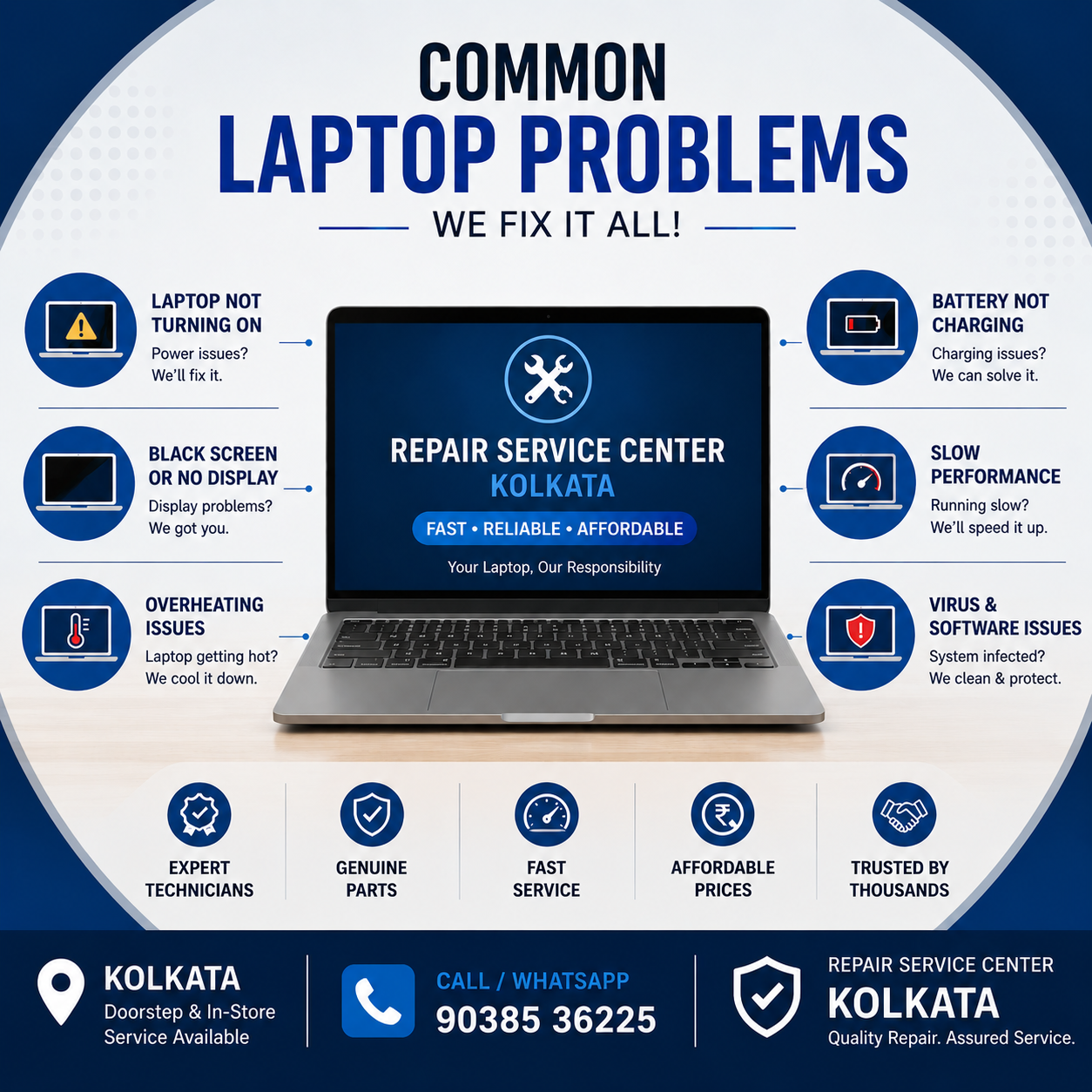
Table of Contents:
Why Laptop Problems Are Increasing in 2026
Laptop problems are increasing rapidly in 2026 because modern users depend heavily on their devices for work, education, entertainment, gaming, and business operations. Continuous usage without proper maintenance puts extra pressure on laptop hardware and software, leading to frequent performance issues and costly repairs.
One major reason behind this rise is the growth of remote work and online learning. Professionals attend long virtual meetings, while students spend hours on online classes, assignments, and video streaming. These activities often create several work-from-home laptop issues such as overheating, slow performance, battery drainage, and webcam failures. Laptops are now expected to run continuously for long hours, which increases wear and tear on internal components.
Another important factor is the rising popularity of gaming and high-performance applications. Modern games, video editing software, 3D designing tools, and AI-based applications require powerful processors and graphics cards. As a result, many users face serious laptop overheating issues during heavy multitasking or gaming sessions. Thin and compact laptop designs often struggle with proper airflow, causing excessive heat buildup inside the system. This is why searches for a reliable gaming laptop heating solution have increased significantly in recent years.
Software-related issues are also becoming more common due to frequent operating system updates. Many users experience compatibility problems after installing updates, especially with Windows 11. Driver conflicts, failed updates, application crashes, and booting errors are now among the most common Windows 11 laptop problems reported by users. In many cases, outdated drivers or unsupported software can make the laptop unstable and slow.
The use of duplicate chargers, low-quality accessories, and non-genuine batteries is another major reason for laptop damage. Cheap chargers can affect the motherboard, battery health, and charging IC, leading to serious hardware failures over time. Many users searching for affordable accessories unknowingly end up damaging their laptops permanently.
Additionally, modern laptops are becoming slimmer and more compact. While these designs improve portability and appearance, they leave less space for cooling systems. This increases the risk of fan failure, thermal issues, and internal component damage. Professional cleaning, thermal paste replacement, and regular maintenance have become essential to avoid long-term performance problems.
As laptop dependency continues to grow in 2026, timely servicing and proper maintenance are more important than ever. Regular checkups from a professional laptop repair expert can help users avoid expensive repairs and improve device lifespan.
Slow Laptop Performance Problems
Slow laptop performance is one of the most common problems faced by students, office workers, gamers, and business users in 2026. A slow laptop can reduce productivity, increase loading time, and create frustration during important tasks. Many users search daily for a reliable slow laptop fix because even high-performance laptops can become sluggish over time without proper maintenance.
Modern applications, Windows updates, heavy multitasking, and storage overload often make laptops slower than before. Understanding the causes and applying the right solutions can significantly improve laptop speed and overall performance.
Common Causes
Too Many Startup Programs
Many applications automatically start when the laptop boots up. These background programs consume RAM and CPU resources, making the system slow from the beginning. Unnecessary startup applications are a major reason behind slow boot time and poor performance.
Low RAM or Storage Space
Insufficient RAM can make multitasking difficult, especially when running browsers, office software, editing tools, or games together. Similarly, nearly full storage drives can slow down the operating system and applications. Users often notice lagging, freezing, and delayed response because of limited memory and storage space.
Virus or Malware Infection
Viruses, spyware, and malware can seriously affect system speed and security. Infected laptops may show random pop-ups, slow browsing speed, automatic crashes, or overheating problems. Malware continuously uses system resources in the background, reducing overall performance.
Old HDD Instead of SSD
Older laptops with traditional hard disk drives (HDDs) usually perform much slower compared to SSD-based systems. HDDs take more time to load Windows, open applications, and transfer files. This is why many users now prefer an SSD upgrade for laptop performance improvement.
Outdated Operating System
Using outdated Windows versions, old drivers, or unsupported software can create compatibility issues and slow system response. Regular updates are necessary for better speed, security, and stability.
Solutions
Remove Unnecessary Software
Uninstalling unused applications and disabling unnecessary startup programs can instantly improve system speed. This simple step reduces background resource usage and improves boot performance.
Upgrade RAM and SSD
Upgrading RAM helps laptops handle multitasking more efficiently. Replacing an old HDD with an SSD is one of the most effective methods for laptop speed optimization. Faster boot time, smoother performance, and quick file access are some major benefits of SSD upgrades.
Many users searching for the best SSD for old laptop prefer SSD upgrades because they provide noticeable speed improvements without buying a new device.
Run Antivirus Scans
Installing trusted antivirus software and performing regular scans helps remove malware and unwanted programs. This protects the laptop from security threats while improving overall performance.
Clean Temporary Files
Temporary files, cache data, and junk files occupy unnecessary storage space. Cleaning these files regularly helps free up storage and improves operating system efficiency.
Install Latest Updates
Updating Windows, drivers, and software ensures better compatibility, security, and performance. Modern updates often include bug fixes and speed improvements that help resolve slow laptop problems.
Regular maintenance, professional diagnostics, and hardware upgrades can greatly improve laptop speed and lifespan. Users facing continuous lagging or freezing issues should consider professional laptop optimization services for long-term performance improvement.
Laptop Overheating Issues
Laptop overheating has become one of the most common hardware problems in 2026, especially among gamers, office professionals, students, and content creators. Modern laptops are designed to be slim and compact, but smaller cooling systems often struggle to handle heavy workloads. Continuous overheating can reduce laptop performance, damage internal components, shorten battery life, and even lead to motherboard failure if not fixed on time.
Many users search online for an effective laptop overheating solution because excessive heat can cause sudden shutdowns, lagging, fan noise, and reduced gaming performance. Identifying the root cause early can help prevent expensive repairs and improve laptop lifespan.
Main Reasons
Dust Accumulation Inside Cooling Fan
Dust buildup inside the cooling fan and heat sink is one of the biggest reasons for overheating. Over time, dust blocks airflow and prevents heat from escaping properly. This causes the internal temperature to rise rapidly during normal usage.
Blocked Air Vents
Laptop air vents are responsible for maintaining proper airflow. Using laptops on beds, pillows, or soft surfaces often blocks these vents and traps heat inside the system. Poor ventilation can quickly increase CPU and GPU temperatures.
Faulty Cooling Fan
A damaged or slow cooling fan cannot remove heat efficiently from internal components. Users may hear unusual fan noise, experience frequent heating, or notice sudden shutdowns. In such cases, professional laptop fan repair or replacement becomes necessary.
Excessive Gaming or Multitasking
Modern games, video editing software, 3D rendering tools, and heavy multitasking place high pressure on the processor and graphics card. This is one of the main reasons users search for a reliable gaming laptop overheating fix. Continuous high-performance usage generates excessive heat, especially in gaming laptops with limited airflow.
Old Thermal Paste
Thermal paste helps transfer heat from the processor to the cooling system. Over time, the paste dries out and loses effectiveness, causing higher CPU temperatures and reduced cooling performance.
Solutions
Professional Internal Cleaning
Regular internal cleaning helps remove dust from cooling fans, air vents, and heat sinks. Professional cleaning improves airflow and reduces overheating significantly. Experts use safe tools to clean sensitive laptop components properly.
Cooling Fan Replacement
If the fan is damaged or not spinning correctly, replacing it is important to restore proper cooling performance. Professional technicians can diagnose cooling system failures and provide reliable fan replacement services.
Thermal Paste Replacement
Old or dried thermal paste should be replaced periodically to maintain efficient heat transfer. Proper thermal paste replacement helps lower CPU and GPU temperatures, especially in gaming and high-performance laptops.
Use of Cooling Pads
Cooling pads provide additional airflow beneath the laptop and help maintain lower temperatures during gaming, office work, or extended usage sessions. They are especially useful for high-performance laptops.
Avoid Using Laptop on Soft Surfaces
Always place laptops on flat and hard surfaces like desks or tables. Soft surfaces block ventilation and trap heat inside the device. Proper airflow is essential for preventing overheating problems.
Regular maintenance and timely servicing can prevent serious heating-related damage. Users experiencing continuous overheating, loud fan noise, or sudden shutdowns should seek professional laptop cooling system repair to avoid long-term motherboard or processor failure.
Laptop Battery Draining Quickly
Fast battery draining is one of the most frustrating laptop problems faced by students, professionals, gamers, and remote workers. Many users notice that their laptops no longer provide sufficient backup time even after full charging. A fast battery drain laptop problem can affect productivity, especially during travel, office work, online classes, and meetings.
Battery performance naturally decreases over time, but poor charging habits, background applications, and hardware issues can make the problem worse. Identifying the actual cause early can help users avoid sudden shutdowns and expensive repairs.
Causes
Aging Battery Cells
Laptop batteries lose their charging capacity after repeated charging cycles. Older batteries usually provide shorter backup times and may drain quickly even during light usage. This is a common issue in older laptops and heavily used devices.
Background Apps Consuming Power
Many applications continue running in the background without the user noticing. These programs consume battery power continuously and reduce overall backup time. Video conferencing apps, browsers with multiple tabs, and unnecessary startup software often increase battery usage.
High Screen Brightness
Using maximum screen brightness for long periods significantly affects battery performance. High brightness settings consume more power, especially in gaming laptops and high-resolution displays.
Faulty Charger
A damaged or low-quality charger may not supply proper voltage to the battery. This can reduce charging efficiency and slowly damage battery health over time. Many users facing an HP laptop battery issue often discover that the charger is faulty or non-genuine.
Overcharging Habits
Keeping the laptop plugged in continuously after reaching 100% charge can generate excess heat and reduce battery lifespan. Poor charging habits gradually weaken battery cells and reduce backup performance.
Solutions
Replace Battery with Genuine Battery
If the battery health is severely reduced, professional laptop battery replacement is the best solution. Always choose a genuine laptop battery to ensure proper performance, safety, and long-term durability. Genuine batteries provide better backup, stable charging, and protection against overheating.
Optimize Power Settings
Adjusting battery saver mode, reducing screen brightness, and changing power settings can improve battery efficiency significantly. Modern operating systems also provide battery optimization tools to reduce unnecessary power consumption.
Reduce Unnecessary Applications
Closing unused applications and disabling unnecessary startup programs helps reduce background battery usage. This improves overall battery backup and system performance.
Use Original Charger
Always use the original charger recommended for the laptop model. Genuine chargers provide stable voltage and help protect the motherboard and battery from electrical damage.
Regular battery health checks, proper charging habits, and timely maintenance can greatly improve laptop battery life. Users experiencing continuous battery draining, overheating during charging, or sudden shutdowns should seek professional battery diagnostic services to avoid long-term hardware damage.
Laptop Screen Problems
Laptop screen problems are among the most common hardware issues faced by users today. A damaged or malfunctioning display can affect work, online classes, gaming, video editing, and everyday productivity. Many users search for professional laptop screen repair Kolkata services when they notice display issues such as flickering, black screens, display lines, or cracked screens.
Modern laptops use advanced display technologies, but screens remain sensitive to physical damage, overheating, loose connections, and graphics-related issues. Early diagnosis can help prevent complete display failure and reduce repair costs.
Common Screen Issues
Flickering Display
A flickering laptop screen is a common issue caused by loose display cables, outdated graphics drivers, refresh rate problems, or damaged screen panels. Screen flickering can make it difficult to work comfortably and may worsen over time if ignored.
Black Screen Problem
Many users experience situations where the laptop powers on but the display remains black. This issue can be caused by graphics card failure, motherboard problems, RAM issues, or display cable damage. A professional black screen laptop fix is important to identify the exact hardware or software fault.
Dead Pixels
Dead pixels appear as tiny black or colored dots on the display that do not change. These pixels are usually caused by manufacturing defects, screen pressure, or internal display damage. While a few dead pixels may not affect usability, multiple dead pixels can reduce screen quality significantly.
Broken or Cracked Screen
Physical damage from accidental drops, pressure, or impacts often causes cracked laptop screens. Broken displays may show ink-like patches, distorted images, or completely unusable screens. In such cases, professional laptop display replacement becomes necessary.
Display Lines
Horizontal or vertical lines on the screen usually indicate display cable damage, graphics chip issues, or panel failure. These lines may appear permanently or intermittently depending on the underlying problem.
Solutions
Display Cable Check
Loose or damaged display cables are common causes of screen flickering and display failure. Professional technicians can inspect and reconnect or replace faulty cables to restore proper screen performance.
Screen Replacement
Severely cracked or damaged screens usually require complete replacement. Professional laptop display replacement services ensure compatibility, proper installation, and better display quality. Using genuine replacement screens also improves durability and performance.
Graphics Driver Update
Outdated or corrupted graphics drivers can cause screen flickering, display lag, and resolution problems. Updating graphics drivers often resolves software-related display issues quickly.
Motherboard Diagnosis
In some cases, display problems are linked to motherboard or graphics chipset failures. Advanced motherboard diagnostics help identify deeper hardware issues that may affect screen performance.
Regular maintenance, careful handling, and timely repair can help prevent major display problems. Users facing continuous flickering, black screen issues, or physical screen damage should seek professional laptop display repair services to avoid further hardware complications.
Laptop Keyboard and Touchpad Problems
Keyboard and touchpad issues are common laptop problems that can affect daily work, online classes, gaming, and business productivity. When keys stop responding or the touchpad behaves abnormally, users often struggle to operate the laptop efficiently. Many people search for solutions related to laptop keyboard not working problems because these issues can occur suddenly without warning.
Modern laptops use compact keyboard and touchpad designs, making them more sensitive to dust, liquid spills, hardware damage, and software conflicts. Early diagnosis and proper repair can help prevent further internal damage and restore smooth functionality.
Causes
Dust and Liquid Damage
Dust accumulation beneath the keyboard can block key movement and reduce responsiveness. Liquid spills are even more dangerous because moisture can damage internal circuits and connectors. Water or beverage spills often lead to permanent keyboard failure if not treated quickly.
Driver Issues
Corrupted or outdated drivers can cause keyboard keys or touchpad gestures to stop functioning properly. After Windows updates, some users experience typing delays, disabled touchpads, or unresponsive shortcut keys due to software conflicts.
Hardware Failure
Frequent usage over several years can wear out keyboard membranes and touchpad sensors. Broken keys, non-working buttons, or touchpad freezing may indicate internal hardware failure.
Loose Internal Connections
Loose keyboard ribbons or touchpad connectors inside the laptop can interrupt communication with the motherboard. This often happens after accidental drops, improper repairs, or physical impacts.
Solutions
Keyboard Cleaning
Professional internal cleaning helps remove dust, dirt, and debris trapped beneath the keys. Proper cleaning improves key responsiveness and prevents long-term damage caused by dust accumulation.
Driver Reinstallation
Reinstalling or updating keyboard and touchpad drivers can solve many software-related issues. This method is especially useful when the touchpad suddenly stops working after a system update.
Keyboard Replacement
If multiple keys stop functioning or liquid damage affects the internal circuit, professional keyboard replacement service is often the best solution. Genuine replacement keyboards ensure better typing comfort and long-lasting performance.
Touchpad Settings Reset
Incorrect touchpad settings can disable gestures, scrolling, or pointer movement. Resetting touchpad settings or enabling the touchpad through system settings can resolve many minor issues. For more serious problems, a professional laptop touchpad fix may be required.
Regular cleaning, careful handling, and timely servicing can help prevent keyboard and touchpad failures. Users facing continuous typing issues, stuck keys, or touchpad malfunction should seek professional laptop repair services to avoid further hardware complications.
Laptop Charging Problems
Laptop charging problems are very common among students, office workers, gamers, and business users. A charging issue can interrupt important work, reduce productivity, and even damage the battery or motherboard if ignored for a long time. Many users search online for a reliable laptop not charging fix when their laptop fails to charge properly or loses power frequently.
Charging problems can occur because of hardware faults, damaged adapters, loose connections, or motherboard-related issues. Identifying the exact reason early helps prevent expensive repairs and improves laptop performance and battery health.
Common Reasons
Damaged Charging Port
The charging port, also known as the DC jack, is one of the most sensitive parts of a laptop. Frequent plugging and unplugging can loosen or damage the charging port over time. A damaged port may cause inconsistent charging, spark issues, or complete charging failure. This is a major reason behind many laptop charging issue complaints.
Faulty Adapter
A damaged or low-quality charger may fail to provide stable power to the laptop. Faulty adapters often cause slow charging, overheating, battery damage, or sudden shutdowns. Using duplicate chargers can also affect motherboard components.
Motherboard Charging IC Issue
The charging IC on the motherboard controls power flow to the battery and laptop system. If this component fails, the laptop may stop charging completely even when the charger is working properly. Advanced motherboard diagnostics are required to identify such problems.
Loose Charging Cable
Loose or broken charger cables can interrupt power supply during charging. Users may notice charging stops when the cable is moved slightly. Damaged wires can also create safety risks and overheating problems.
Solutions
Charger Testing
Professional technicians first test the charger and power adapter to check voltage stability and compatibility. Proper testing helps identify whether the problem is related to the charger, battery, or motherboard.
DC Jack Replacement
If the charging port is physically damaged or loose, professional DC jack repair or replacement is necessary. Replacing the damaged charging port restores stable charging performance and prevents further motherboard damage.
Motherboard Repair
Charging IC and motherboard-related problems require advanced chip-level repair services. Professional motherboard repair helps restore charging functionality without replacing the entire laptop.
Genuine Adapter Usage
Always use original or manufacturer-approved chargers for better safety and performance. Genuine adapters provide stable voltage and reduce the risk of overheating, battery damage, and motherboard failure. In many cases, proper laptop charger replacement solves charging problems immediately.
Regular maintenance and careful charger handling can help prevent future charging issues. Users experiencing overheating chargers, loose charging ports, or inconsistent battery charging should seek professional laptop charging repair services before the problem becomes more serious.
Laptop WiFi and Connectivity Problems
WiFi and internet connectivity problems are common issues faced by laptop users in homes, offices, schools, and business environments. A stable internet connection is essential for online classes, remote work, gaming, video conferencing, and cloud-based applications. When users face a laptop WiFi not working problem, it can interrupt important tasks and reduce productivity significantly.
Modern laptops depend heavily on wireless connectivity, but software bugs, hardware failures, and network configuration issues can affect internet performance. Understanding the causes and solutions can help users restore stable connectivity quickly.
Causes
Driver Corruption
WiFi drivers help the operating system communicate with the wireless hardware. Corrupted or outdated drivers can cause slow internet speed, connection drops, or complete WiFi failure. This is one of the most common reasons behind an internet problem in laptop devices after software updates.
Router Compatibility Issues
Some older routers may not work properly with modern laptops or updated operating systems. Incorrect router settings, outdated firmware, or signal conflicts can create unstable wireless connections.
Faulty WiFi Card
The internal WiFi card is responsible for detecting and maintaining wireless connections. If the card becomes damaged or fails, the laptop may stop detecting available networks completely. In such cases, professional WiFi card replacement may be required.
Windows Update Bugs
Windows updates sometimes create network-related bugs or driver conflicts. Users may experience limited connectivity, missing WiFi options, or sudden internet disconnections after installing system updates.
Solutions
Update Drivers
Updating wireless network drivers can solve many connectivity problems quickly. Latest drivers improve compatibility, fix bugs, and enhance overall network stability.
Reset Network Settings
Resetting network settings helps remove incorrect configurations and restore default connectivity options. This process often resolves internet access problems caused by software conflicts or corrupted settings.
Replace WiFi Card
If the wireless hardware is damaged, professional WiFi card replacement helps restore proper network connectivity. Genuine replacement components improve signal strength and connection stability.
Configure Router Properly
Correct router configuration is important for stable internet performance. Updating router firmware, changing WiFi channels, and securing the network can improve connectivity and reduce signal interruptions.
Regular software updates, proper router maintenance, and professional diagnostics can help prevent future connectivity issues. Users experiencing continuous WiFi disconnections, slow browsing speed, or network detection problems should seek professional laptop network repair services for reliable long-term solutions.
Blue Screen Errors (BSOD)
Blue Screen of Death (BSOD) errors are serious system crashes that force the laptop to restart unexpectedly. These errors usually appear with a blue screen and an error message when Windows detects a critical problem that could damage the system. Many users search online for a reliable blue screen error fix because BSOD issues can interrupt important work, online meetings, gaming sessions, and business operations.
Frequent blue screen crashes may indicate hardware failure, corrupted software, overheating, or memory-related problems. Ignoring these warning signs can lead to data loss, operating system corruption, and permanent hardware damage.
Causes
Corrupted Drivers
Drivers help Windows communicate with hardware devices such as graphics cards, WiFi adapters, and printers. Corrupted or incompatible drivers are one of the most common causes of BSOD errors. Driver conflicts often occur after Windows updates or improper software installations.
RAM Issues
Faulty or damaged RAM can create random crashes, freezing, and restart loops. Defective memory modules interrupt normal system operations and frequently trigger blue screen errors during multitasking or gaming.
Malware Attacks
Viruses and malware can damage important system files and affect Windows stability. Malware infections may cause frequent crashes, unusual system behavior, and sudden restart problems.
Overheating Hardware
Excessive heat from the processor, graphics card, or motherboard can force the system to shut down unexpectedly. Overheating is a major reason behind many laptop restart problem complaints, especially in gaming laptops and heavily used systems.
Solutions
Update Windows Drivers
Installing the latest drivers helps improve compatibility and system stability. Updated drivers can resolve hardware communication issues and prevent frequent blue screen crashes.
RAM Diagnostics
Professional memory testing helps identify faulty RAM modules causing system instability. Replacing damaged RAM improves performance and reduces unexpected crashes.
Malware Removal
Running trusted antivirus software and performing complete malware scans help remove harmful programs affecting system files. Proper malware removal also improves overall laptop security and performance.
System Restore
System restore allows users to return Windows to a previous stable state before the error started occurring. This method is useful when BSOD issues are caused by recent updates, software installations, or driver conflicts.
Regular maintenance, software updates, and hardware diagnostics are essential for preventing system crashes. Users experiencing repeated BSOD errors, random restarts, or continuous system freezing should seek professional Windows crash solution services to avoid serious hardware and data-related problems.
Laptop Hanging and Freezing Problems
Laptop hanging and freezing problems are very common among students, office workers, gamers, and business users. A hanging laptop may become slow, stop responding, or freeze completely during important tasks. These issues affect productivity and create frustration, especially during online meetings, gaming, video editing, or multitasking. Many users search online for a reliable laptop hanging solution when their device becomes unresponsive frequently.
Frequent freezing problems usually indicate hardware limitations, software corruption, overheating, or malware infections. Identifying the exact cause early can help prevent serious performance issues and improve system stability.
Reasons
Insufficient RAM
Low RAM is one of the biggest reasons behind laptop hanging problems. Modern applications, browsers, and operating systems require more memory to run smoothly. When RAM becomes insufficient, the laptop struggles to handle multitasking, causing lagging and freezing issues.
Malware Infection
Viruses, spyware, and malware consume system resources in the background and affect overall performance. Infected laptops may freeze frequently, open unwanted applications, or respond very slowly during normal usage.
Overloaded CPU
Running heavy software, multiple browser tabs, gaming applications, or video editing programs can overload the processor. Continuous high CPU usage often causes overheating and system freezing problems.
Corrupted Software
Damaged system files, incomplete software installations, or corrupted operating system files can create instability and cause frequent hanging issues. Software conflicts after Windows updates are also common reasons for laptop freezing.
Solutions
Hardware Upgrades
Upgrading RAM and replacing old hard drives with SSDs can significantly improve laptop performance. Hardware upgrades are among the most effective methods for a long-term laptop freezing fix and smoother multitasking experience.
Remove Malware
Installing trusted antivirus software and running full system scans help remove malware and harmful programs. Proper malware removal improves system speed, security, and overall stability.
Reinstall Operating System
Reinstalling Windows or performing a clean operating system setup helps remove corrupted files, software conflicts, and unnecessary programs affecting performance. This process often restores laptop speed and stability.
Regular Maintenance
Routine maintenance such as cleaning temporary files, updating drivers, uninstalling unused applications, and checking hardware health helps prevent future hanging problems. Professional laptop optimization service can also improve overall performance and extend laptop lifespan.
Regular servicing and timely upgrades are important for maintaining smooth laptop performance. Users facing continuous freezing, slow response time, or random system hangs should seek professional laptop repair and optimization services for reliable long-term solutions.
Data Loss and Hard Drive Failure
Data loss and hard drive failure are serious laptop problems that can affect personal files, office documents, business records, photos, videos, and important projects. Many users realize the importance of storage health only after losing valuable data unexpectedly. Modern laptops store large amounts of information, so even a small storage issue can create major problems for students, professionals, and businesses.
Hard drives and SSDs can fail over time because of physical damage, overheating, malware attacks, power fluctuations, or excessive usage. Recognizing early hard disk failure signs can help users protect important data and avoid complete storage failure.
Warning Signs
Clicking Noises
Unusual clicking or grinding sounds from the hard drive often indicate internal mechanical damage. This is one of the most common warning signs of failing HDDs and should never be ignored.
Slow File Access
If files take too long to open, transfer, or save, the storage drive may be struggling to read data properly. Slow file access usually indicates bad sectors or deteriorating storage performance.
Corrupted Files
Frequently corrupted documents, missing files, or unreadable folders can be signs of storage damage. Users may notice files failing to open properly or applications crashing while accessing saved data.
Frequent Crashes
Random system freezes, restart loops, and blue screen errors may occur when the hard drive or SSD becomes unstable. Storage-related crashes often become more frequent as the drive condition worsens.
Solutions
Data Backup
Regular data backup is the best way to protect important files from unexpected storage failure. Users should store backups on external drives, cloud storage, or secondary devices to prevent permanent data loss.
SSD Replacement
Replacing an old or failing hard drive with an SSD improves speed, reliability, and overall system performance. Professional SSD replacement service helps users upgrade storage safely while improving boot speed and multitasking performance.
Professional Data Recovery Services
When important files become inaccessible, professional laptop data recovery services can help retrieve lost data from damaged or corrupted drives. Advanced recovery tools and expert diagnostics improve the chances of successful data restoration.
Regular storage health checks, proper backups, and timely upgrades can help prevent major data loss problems. Users noticing unusual noises, slow performance, or corrupted files should immediately seek professional storage diagnostics to avoid permanent hard drive failure.
Virus and Malware Problems
Virus and malware attacks are among the most common security problems affecting laptops in 2026. Students, office users, gamers, and business professionals often store important personal and financial data on their laptops, making them easy targets for cyber threats. Malware infections can slow down the system, damage files, steal sensitive information, and even make the laptop unusable.
Many users search for professional laptop virus removal services when their systems become unusually slow or start behaving abnormally. Early detection and proper security practices are essential for protecting laptops from viruses, spyware, ransomware, and other malicious software.
Common Symptoms
Slow System
A sudden decrease in laptop speed is one of the most common signs of malware infection. Viruses often run hidden processes in the background, consuming CPU, RAM, and storage resources continuously.
Pop-Up Ads
Frequent unwanted advertisements appearing on the screen or browser indicate possible adware infection. These pop-ups can slow down the system and redirect users to unsafe websites.
Browser Redirects
If the browser automatically opens unknown websites or changes search engine settings without permission, the laptop may be infected with malware. Browser hijacking is a common cybersecurity issue affecting many users.
Unauthorized Access
Unexpected password changes, unknown software installations, suspicious account activity, or disabled security settings may indicate unauthorized access caused by malware attacks.
Solutions
Antivirus Installation
Installing trusted antivirus software is one of the most effective ways to improve malware protection for laptop devices. Modern antivirus programs help detect, block, and remove harmful files before they damage the system.
Malware Scanning
Regular malware scans help identify hidden viruses, spyware, ransomware, and suspicious applications. Professional scanning tools can remove advanced threats that normal software may fail to detect.
Safe Browsing Practices
Avoid downloading files from unknown websites or clicking suspicious links and email attachments. Safe browsing habits reduce the risk of malware infections and improve overall laptop security.
Software Updates
Keeping Windows, browsers, drivers, and security software updated helps fix vulnerabilities that hackers often exploit. Regular updates improve both system security and performance.
Professional antivirus service Kolkata solutions can help users secure their laptops against modern cyber threats. Regular virus scans, strong passwords, and updated security software are essential for maintaining safe and stable laptop performance.
Importance of Professional Laptop Repair Services
Modern laptops are complex devices that require proper technical knowledge for accurate diagnosis and repair. Whether the issue is related to the motherboard, battery, screen, charging system, or software, professional assistance is important to avoid further damage. Many users try temporary fixes or untrained local repairs, but improper handling can increase repair costs and reduce laptop lifespan.
Choosing reliable professional laptop repair services helps ensure safe, accurate, and long-lasting solutions for both hardware and software problems. Professional technicians use advanced diagnostic tools and proper repair methods to identify the exact cause of the issue quickly.
Benefits of Expert Diagnosis
Experienced technicians can detect hidden problems that are often missed during basic troubleshooting. Proper diagnosis helps prevent unnecessary replacements and ensures the right repair solution. Professional repair experts can identify issues related to the motherboard, RAM, storage drive, display, charging circuit, and operating system more efficiently.
Use of Genuine Spare Parts
Using high-quality and genuine laptop spare parts is essential for long-term performance and reliability. Duplicate batteries, chargers, screens, and keyboards may cause overheating, poor performance, or motherboard damage. Professional service centers use compatible and tested spare parts that improve durability and safety.
Faster Repair Solutions
Professional repair centers have the tools, spare parts, and technical expertise needed for faster repairs. Whether users need laptop screen replacement, SSD upgrades, virus removal, or motherboard repair, experienced technicians can complete the work efficiently with minimal downtime.
Data Safety During Repair
Many users store important office files, business documents, personal photos, and confidential information on their laptops. Professional repair technicians follow proper safety procedures to protect user data during diagnostics and repair work. Secure handling reduces the risk of data loss or unauthorized access.
Warranty Support
One major advantage of choosing a trusted laptop service center Kolkata is warranty support on repairs and spare parts. Warranty-backed services provide additional peace of mind and ensure better service reliability.
Convenience of On-Site Repair Services
Many users now prefer on-site laptop repair services because they save time and reduce transportation risks. On-site support allows technicians to diagnose and repair certain issues directly at home or office locations, making the repair process more convenient for customers.
Professional laptop repair services not only solve existing problems but also improve overall device performance and lifespan. Timely maintenance, genuine spare parts, and expert support help users avoid major hardware failures and expensive future repairs.
Preventive Maintenance Tips for Laptop Users
Proper maintenance is essential for keeping a laptop fast, stable, and reliable for long-term use. Many common laptop problems such as overheating, slow performance, battery damage, and hardware failure can be prevented through regular care and timely maintenance. Following simple laptop maintenance tips can improve performance, reduce repair costs, and help users avoid unexpected breakdowns.
Regular maintenance not only improves system efficiency but also helps extend laptop lifespan significantly for students, office workers, gamers, and business users.
Regular Cleaning
Dust accumulation inside the laptop can block cooling vents and reduce airflow. This often leads to overheating, loud fan noise, and slow performance. Regular external and internal cleaning helps maintain proper cooling and improves overall hardware health. Professional cleaning services are recommended for safe internal maintenance.
Avoid Overcharging
Keeping the laptop connected to the charger continuously after reaching full charge can reduce battery health over time. Excessive heat generated during constant charging may also damage internal components. Proper charging habits help improve battery life and prevent power-related issues.
Use Antivirus Software
Installing trusted antivirus software protects the laptop from viruses, spyware, ransomware, and malware attacks. Regular virus scans help maintain system security and improve performance by removing harmful files and suspicious applications.
Keep Software Updated
Updating Windows, drivers, and applications regularly improves system stability, security, and compatibility. Software updates often include important bug fixes, performance improvements, and protection against modern cyber threats.
Safe Handling Practices
Proper handling is important to avoid physical damage to the laptop. Users should avoid placing heavy objects on the device, using the laptop on soft surfaces, or exposing it to liquids and extreme heat. Using the laptop on flat surfaces also helps prevent laptop overheating by maintaining proper airflow.
Additional Maintenance Tips
- Use original chargers and accessories
- Backup important files regularly
- Shut down the laptop properly after use
- Avoid installing unnecessary software
- Keep storage space optimized
- Use cooling pads during heavy gaming or multitasking
Routine maintenance and professional servicing help keep laptops running smoothly for years. Users who follow proper preventive care practices can reduce hardware failures, improve battery performance, and maintain faster overall system speed.
Why Choose Repair Service Center Kolkata
Choosing the right laptop repair provider is important for maintaining device performance, data safety, and long-term reliability. Repair Service Center Kolkata is known for providing professional repair solutions for various laptop brands and models. Whether users face hardware failure, software issues, overheating problems, or screen damage, experienced technicians provide reliable and cost-effective solutions.
Many customers choose Repair Service Center Kolkata because of its trusted reputation as one of the best laptop repair center in Kolkata for fast and professional service support.
Experienced Technicians
Repair Service Center Kolkata has skilled technicians with experience in diagnosing and repairing different laptop problems. From motherboard repairs and SSD upgrades to screen replacement and virus removal, trained professionals handle both hardware and software issues carefully and efficiently.
Multi-Brand Repair Support
The service center provides complete support for multiple laptop brands including HP, Dell, Lenovo, ASUS, Acer, MSI, Apple MacBook, and more. Customers looking for reliable HP laptop repair Kolkata services can get professional solutions using advanced diagnostic tools and genuine spare parts.
As a trusted multi-brand laptop service center, the company handles gaming laptops, business laptops, student laptops, and workstation devices with proper technical expertise.
Affordable Repair Pricing
Repair Service Center Kolkata offers transparent and budget-friendly pricing for various laptop repair services. Customers searching for affordable laptop repair Kolkata solutions can expect quality service without unnecessary repair costs. Proper diagnosis helps avoid unnecessary part replacement and reduces overall expenses.
On-Site Repair Services
For customer convenience, the company also provides professional on-site repair support. Users can book technicians for home or office visits to diagnose and fix selected laptop problems without carrying the device to the service center. This service is especially useful for working professionals and business users.
Fast Turnaround Time
Quick diagnosis and faster repair completion help minimize downtime for customers. The repair team focuses on providing timely solutions so users can resume work, study, or gaming activities without long delays.
Genuine Spare Parts Availability
Using high-quality and genuine spare parts is important for maintaining laptop performance and safety. Repair Service Center Kolkata uses tested and compatible components for screen replacement, battery replacement, keyboard repair, charging issues, and motherboard services.
With experienced technicians, professional support, and customer-focused service, Repair Service Center Kolkata continues to be a trusted choice for reliable laptop repair solutions in Kolkata.
Conclusion
Laptop problems such as slow performance, overheating, battery draining, screen damage, charging issues, WiFi connectivity problems, virus attacks, and system crashes have become very common in 2026. Continuous usage for office work, online education, gaming, and business activities puts extra pressure on laptop hardware and software. Ignoring these problems for a long time can lead to serious hardware damage, data loss, and expensive repairs.
Early diagnosis and timely maintenance play an important role in keeping laptops safe, stable, and efficient. Simple preventive measures like regular cleaning, software updates, antivirus protection, and proper charging habits can help improve performance and extend device lifespan. However, complex hardware issues such as motherboard failure, charging problems, display damage, and data recovery should always be handled by experienced technicians.
Many users attempt risky DIY repairs without proper technical knowledge, which can sometimes worsen the problem and increase repair costs. Seeking help from professional technicians ensures accurate diagnosis, safe repairs, genuine spare parts, and long-term reliability.
If you are searching for laptop repair near me, trusted laptop troubleshooting services, or fast laptop repair services, Repair Service Center Kolkata provides reliable support for all major laptop brands and models. From screen replacement and motherboard repair to virus removal and SSD upgrades, experienced laptop repair experts offer professional solutions for both hardware and software problems.
For safe, affordable, and professional laptop repair Kolkata services, contact Repair Service Center Kolkata today and keep your laptop running smoothly with expert technical support.
Share:
More Posts

Send Us A Message

Follow Us
Nabagram Jhil Road, Garia Station, Kolkata – 700152
+91 90385 36225 | hello@repairservicecenterkolkata.in
© 2024 – 2026 | Repair Service Center